Adobe Premiere Pro EXTENSION

Auto Warp Stabilizer
For Adobe Premiere Pro

Warp Stabilizer, fully automated. Every clip, every track — hit Run once
and come back to a stabilized, saved project.

✦ One Click ✦ Automatically ✦ Batch Stabilization ✦ Set & Forget ✦ Quick editing
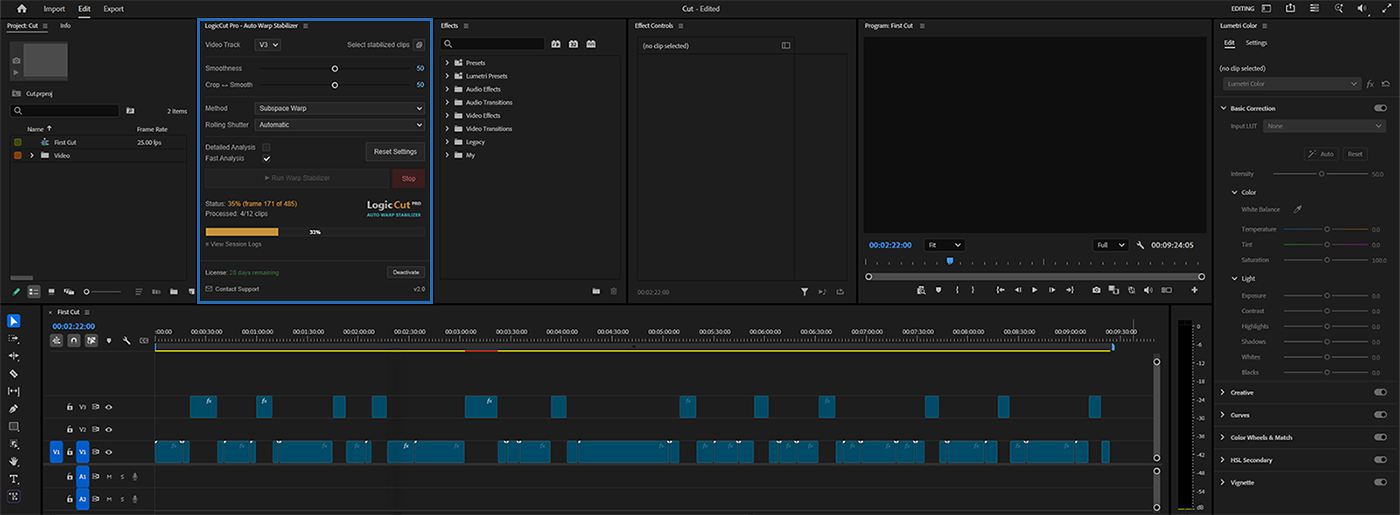
LogicCut Pro - Auto Warp Stabilizer Video Track V3 Select stabilized clips Smoothness 50 Crop ↔ Smooth 50 Method Subspace Warp Rolling Shutter Automatic Detailed Analysis Fast Analysis Reset Settings Run Warp Stabilizer Stop Status: Ready Processed: 0/0 clips Logic Cut PRO AUTO WARP STABILIZER 0% View Session Logs License: 30 days remaining Deactivate Contact Support v2.0
Scroll
Core Features

Built for Video Editors

The hours you spent stabilizing clips manually?
GONE
LogicCut Pro handles your entire timeline automatically.

One-Click Batch Stabilization

Select your unstable clips, place them on a dedicated track, hit Run. LogicCut Pro applies Warp Stabilizer to every clip automatically — no manual effect dragging.

BATCH PROCESSING ONE CLICK

Sequential Analysis

Each clip is analyzed in order. If an issue occurs, LogicCut Pro retries automatically — if it still can't process a clip, it skips it, logs the error, and moves on.

AUTO RETRY STABLE RESULTS

Set & Forget

Start the process and walk away. LogicCut Pro works through your entire track while you handle other tasks — no babysitting required.

HANDS-FREE AUTO RUN

Full Settings Control

Fine-tune Smoothness, Crop ratio, Stabilization Method (Subspace Warp, Position, or Perspective), Rolling Shutter correction, and Analysis mode — all before hitting Run.

FULL CONTROL CUSTOMIZABLE

Auto-Save on Completion

When the last clip is processed, your project is automatically saved. Come back to a clean, finished timeline.

AUTO SAVE ZERO EFFORT

Built for Heavy Workflows

Feature films, music videos, wedding cinematography — if your timeline runs long and your clip count runs high, LogicCut Pro was built for exactly that.

LONG TIMELINES HIGH VOLUME
How it Works

Everything You Need to Know

A complete guide to installing, configuring, and getting the most out of LogicCut Pro Auto Warp Stabilizer.

Overview

LogicCutPro Auto Warp Stabilizer is a professional Adobe Premiere Pro extension built for editors who work with large, footage-heavy projects and need an efficient, hands-off approach to video stabilization. Instead of manually applying and analyzing Warp Stabilizer on each clip one by one, this plugin automates the entire process — applying effects, running analysis, and saving your project when it's done.

Platform Windows 10 / 11
Premiere Pro 2021 or later
Current Release v2.0
Installation & First Launch
1

Download and run the installer, then open Adobe Premiere Pro and load your project.

2

Navigate to the Window menu at the top of the screen, select Extensions, and click on LogicCutPro Auto Warp Stabilizer.

3

The plugin panel will open and prompt you to enter the license key you received at the time of purchase. Type in your key and click Activate.

4

As long as your key is valid and you have an active internet connection, activation will complete successfully. The panel can then be docked anywhere within Premiere Pro's interface — it integrates fully with the workspace like any native panel.

How It Works
1

Prepare Your Timeline

Move all clips that need stabilization up to a higher video track — V2, V3, or V4, depending on your preference and project structure.

2

Select the Target Track

At the top of the plugin panel, you'll find a Video Track selector. Choose the track where your clips are placed. The default is set to V3.

3

Run the Process

Click Run. From this point, you can step away and focus on other things. The plugin works through your timeline sequentially — applying Warp Stabilizer to each clip, running the analysis one file at a time, and once everything is complete, it automatically saves your Premiere Pro project.

Progress Tracking
Progress Shows how many files have been analyzed and how many remain in the queue.
Status Displays real-time information about what's happening with each individual clip as it's being processed.
Completion Done & Saved

When all files are successfully processed, the Status field turns green and displays Done & Saved, confirming that the project has been saved automatically.

Error Handling

If the plugin encounters a problem with a particular clip, it will wait briefly and then attempt to process that clip again. If the second attempt also fails, the plugin skips that clip, continues with the rest, and reports the issue in the Status field at the end — so you're always aware of any files that may need attention.

One common reason for failed clips is accidentally placing the wrong file on the stabilization track. After long editing sessions, a clip can end up on the wrong track and doesn't match what the plugin expects, which may cause processing errors.

For a detailed breakdown of any issues that occurred during the session, click the View Session Logs button at the bottom of the panel. It opens a dedicated window listing all logged events and errors from the current run.

Settings & Customization

All default values mirror the native Warp Stabilizer effect defaults in Premiere Pro. Any setting change applies to all clips on the currently selected track.

Smoothness Controls stabilization intensity — Default: 50
Crop / Smooth Adjusts the crop-to-smoothness balance
Method Choose the stabilization method
Analysis Mode Detailed or Fast analysis
Settings Memory AUTO-SAVED

The plugin remembers your last-used settings even after closing and reopening the panel. To restore everything to factory defaults, click Reset Settings.

Adjusting Settings After Analysis

Already ran the analysis but need to tweak a setting — say, change the Smoothness value or switch the Method? You don't need to re-analyze everything from scratch. Make your changes and click Run again. The plugin will quickly update all previously analyzed clips with the new values, skipping the analysis stage entirely.

Exception: Changes to the Analysis Mode (Detailed / Fast) require a full re-analysis of all clips, as this setting directly affects how the footage data is processed at a fundamental level.

Working with Large & Heavy Projects

On large, complex timelines, Premiere Pro's built-in auto-save can become a source of instability. When a project is heavy, auto-save takes significantly longer, puts extra load on your system, and can cause Premiere to hang — which in turn may interrupt the plugin's process. To prevent this, follow the recommended workflow below before running the plugin on demanding projects.

1

Manually save your project before starting the plugin.

2

Disable Premiere Pro's auto-save in preferences before clicking Run.

3

Let the plugin complete its work — it will save the project automatically when finished.

4

Once the plugin is done, re-enable auto-save in Premiere's preferences.

Select Stabilized Clips

After analysis and review, if you move your processed clips back down to the main video track and later need to identify which clips have Warp Stabilizer applied — for any reason — the plugin has a dedicated tool for that.

At the top of the panel, you'll find the Select Stabilized Clips button. Choose your target track, click the button, and the plugin will instantly select all clips on that track that have Warp Stabilizer applied. The Status bar will also display the exact number of clips selected.

License & Activation Management
Machines per License 1 device only
Internet Requirement Required — license verified periodically
Deactivations Included 1× self-service

One license activates on one machine only. Once a key is in use on a computer, it cannot be activated elsewhere without first deactivating it from the current machine. The Deactivate button is located in the bottom-right corner of the panel.

Important: Each license includes only one self-service deactivation. If you are planning to switch computers, reinstall your OS, or make significant hardware changes — such as replacing your motherboard or storage drive — deactivate the plugin before making those changes, as these actions will alter your Hardware ID. Once your self-service deactivation has been used, you will no longer be able to deactivate on your own again and will need to contact our support team directly to request a manual transfer.

Contact Support

In the bottom-left corner of the panel, there's a Contact Support button. Clicking it opens a form where you enter the email address associated with your license and write a description of the issue you're experiencing. After submitting, the panel will confirm whether your message was sent successfully.

Make sure to use the same email address you used when purchasing the license, so we can locate your account and assist you as quickly as possible.

Pricing

Simple, Transparent

One plugin, one price. No hidden fees, no feature tiers.

Auto Warp Stabilizer
$20 /month

Billed monthly · Cancel anytime

  • Full Auto Warp Stabilization
  • 1 Machine License
  • All Future Updates Included
  • Priority Email Support
  • 14-Day Money-Back Guarantee
Get Started — $20/month

Secure checkout · Payments powered by [Lemon Squeezy]

14-day money-back guarantee · No questions asked.

"Stabilizing 80 clips used to take me half a day. Now I hit Run, grab a coffee, and it's done."

A

Alex M.

Wedding Cinematographer

"This saved me hours on a documentary project. 300 clips stabilized while I was editing the sound mix."

M

Mark T.

Documentary Filmmaker

"I had 120 clips to stabilize before a deadline. LogicCut Pro ran overnight and everything was ready in the morning."

J

James R.

Freelance Video Editor

"Finally a plugin that does exactly what it says. Set it up once and it handles the whole timeline without babysitting."

S

Sarah K.

Music Video Director